How to Stop Fine Threads From Forming Inside Ocarina Finger Holes
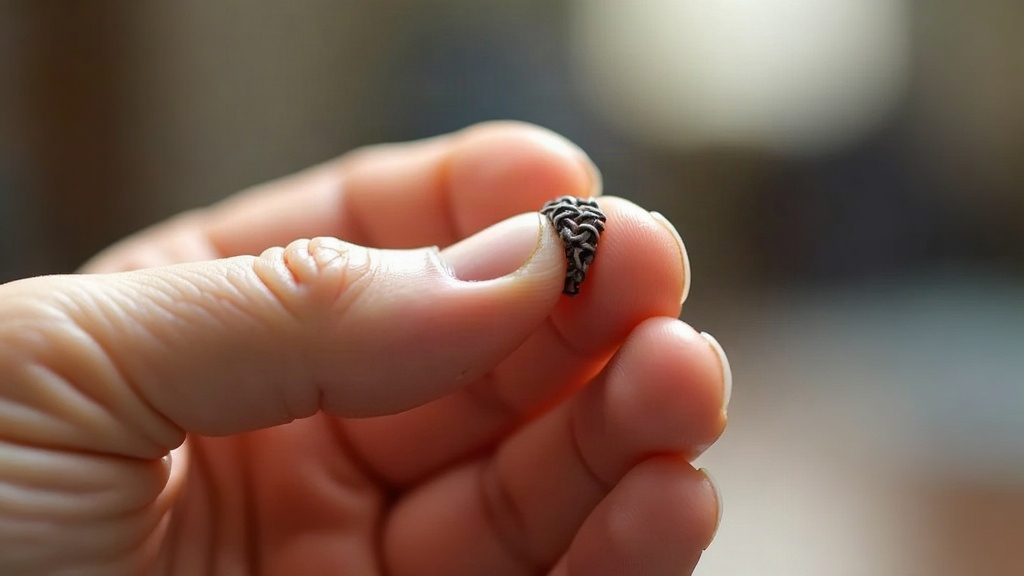
If you’ve just pulled an ocarina off the bed and found a mess of hair-thin strings clogging up the finger holes, don’t worry, you’re not doing anything fundamentally wrong. This is one of those problems that’s almost entirely mechanical in nature: retraction and travel behavior simply falls apart once features get this small. Below I’ll walk through why it happens at this scale, then give you a tested order of fixes, from slicer tweaks to hardware checks, so you get clean, playable holes without reaching for a drill bit afterward.
Why Finger Holes Are Especially Prone to Stringing
Most ocarina finger holes sit somewhere between 6 and 12mm in diameter. That’s small enough that the nozzle has to trace a very tight, quick circle, then hop to the next hole almost instantly. A few things stack up here at once:
- Short travel distances. The usual stringing fix, retraction, is calibrated with longer moves in mind. Drop below 5mm of travel and most slicers simply skip retraction by default (look for “minimum travel for retraction” in your settings), which means oozing has zero countermeasure working against it.
- High oozing pressure near small circles. Tracing a tight circle keeps the nozzle parked over roughly the same square millimeter of plastic for an extended moment. Heat builds, pressure builds, and filament gets pushed out the nozzle tip even when no extrusion command is telling it to.
- Bridging over the hole. Each finger hole is, structurally speaking, a tiny bridge or overhang once the top layers start closing over it. Any sag or drool at that stage reads as a thread the moment you clear the hole out.
- Multiple holes per layer. A typical ocarina has somewhere between 4 and 10 holes on a given layer. Every single jump between them is another opportunity to ooze, so you’re multiplying your error rate ten times over on one layer alone.
Step 1: Fix Minimum Travel Distance for Retraction
This is the single most common culprit, by far. In most slicers (Cura, PrusaSlicer, OrcaSlicer), here’s what to check:
- Find “Retraction Minimum Travel” in Cura, or “only retract when crossing perimeters” in PrusaSlicer.
- Drop that value down to 1-2mm, or just turn off the “only retract above a distance” rule entirely.
- This forces the printer to retract even on the short hops between neighboring finger holes, which is exactly where the problem starts.
Step 2: Tune Retraction Distance and Speed
Small holes demand a snappier retraction profile than a big flat panel would need:
- Direct drive extruders: 0.4-1mm retraction distance, 25-35mm/s speed.
- Bowden extruders: 3-6mm retraction distance, 35-45mm/s speed.
- Turn on “Retract before outer wall” and add a small “Z hop when retracted” (0.1-0.2mm), so the nozzle physically lifts clear of any residual ooze instead of dragging it straight across the hole.
Step 3: Lower Temperature Slightly for Detail Layers
Here’s something a lot of people miss: fine threading tends to get noticeably worse once you’re printing 5-10°C above a filament’s minimum recommended range. Worth trying:
- PLA: drop detail sections to 195-200°C instead of the usual 210-215°C.
- PETG: pull back to around 230°C and push your cooling fan up to 60-80%.
- If your slicer supports per-feature temperature (OrcaSlicer handles this well), set a slightly cooler profile just for the small perimeters around each hole.
Step 4: Add “Coasting” or Reduce Pressure Before the Hole
Coasting cuts extrusion a fraction early at the tail end of each perimeter, letting the built-up pressure in the nozzle bleed off rather than stringing straight into the hole:
- Turn on Coasting in Cura (try 0.2-0.5mm coasting volume), or use Pressure Advance if you’re running Klipper or Marlin firmware.
- Pressure Advance tends to work even better here, since it compensates for pressure dynamically as the nozzle moves through tight curves, which is precisely the geometry you get at a finger hole.
Step 5: Reorder or Avoid Hole-to-Hole Travel
If your slicer gives you control over print order, or has an “Avoid Crossing Perimeters” option:
- Turn on Avoid Crossing Perimeters so travel moves get routed around open holes instead of cutting straight across them.
- Where possible, group all the finger holes so they print back to back rather than scattered in between the rest of the shell geometry. Fewer crossings over open hole space means fewer chances for strings to form.
Step 6: Mechanical Checks Before Reprinting
No slicer setting fixes a hotend that’s physically leaking filament:
- Check for a worn PTFE tube or a loose heatbreak. Either one causes constant ooze no matter how aggressive your retraction settings are.
- Make sure the nozzle isn’t partially clogged. A partial clog raises internal pressure and pushes more filament out during every travel move.
- Confirm your extruder gears have good grip and aren’t slipping. If they slip, the filament never actually pulls back the full distance you’ve told it to retract, and all that tuning in Step 2 goes to waste.
Quick Settings Checklist
| Setting | Recommended Value |
|---|---|
| Minimum travel for retraction | 1-2mm |
| Retraction distance (Bowden) | 3-6mm |
| Retraction speed | 35-45mm/s |
| Z hop | 0.1-0.2mm |
| Print temp (fine detail) | -5 to -10°C vs. normal |
| Cooling fan | 60-100% |
Conclusion
Most of the stringing inside ocarina finger holes comes down to a simple mismatch: slicers are built around handling long travels, but tiny circular features demand short, frequent jumps that most default profiles never account for. Fixing the minimum travel-for-retraction threshold alone usually solves the bulk of it. Stack that with tighter retraction tuning, a slightly cooler print temp, coasting or pressure advance, and a hotend that’s mechanically sound, and you’ll get clean, string-free holes print after print. Before you commit to a full multi-hour ocarina print, run a quick test piece with just four holes. It costs you a few minutes and saves you from discovering the problem after the whole instrument is already done.