Lithophane Moon Lamps: Beginner vs Advanced Printing Guide
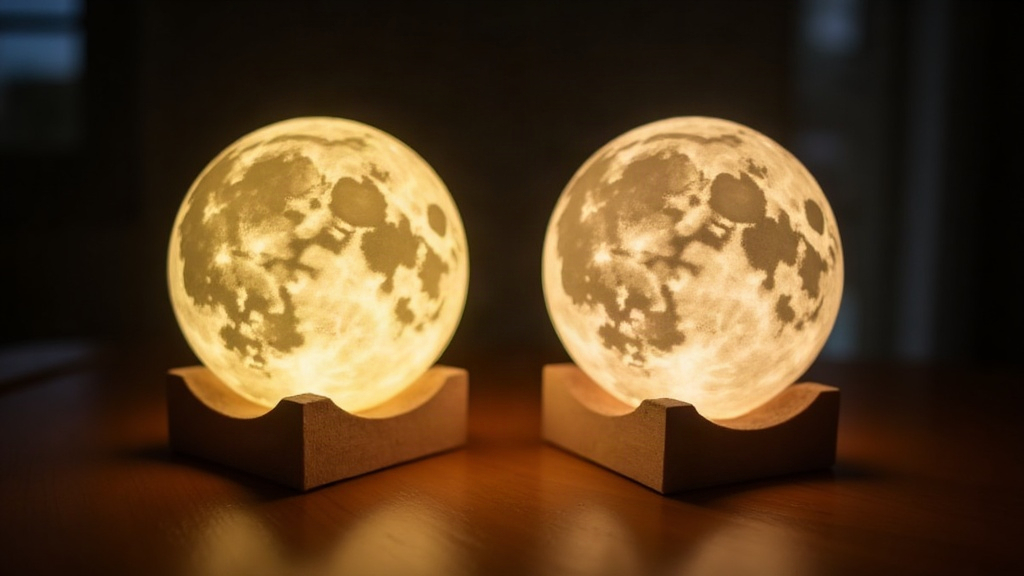
Printing a Lithophane Moon Lamp: Beginner vs. Advanced Techniques for Even Light Diffusion
Printing a lithophane moon lamp sounds easy, right up until you flip the switch and find blotchy bright patches, dark rings around the equator, or an image so washed out you can barely make out a crater. This guide walks through two paths: the beginner route that gets you a working lamp, and the advanced route that gets you an evenly glowing one. Because there’s a real gap between “it lights up” and “it looks like the actual moon.”
What Makes a Lithophane Moon Lamp Different From a Regular Print
A lithophane is a 3D-printed image that only reveals itself when light passes through it from behind. For moon lamps specifically, the model is usually a sphere with wall thickness that varies based on NASA or Celestial-mapped lunar texture data. Thin spots (craters, the maria) let light through; thick spots (highlands) block it. Simple idea, tricky execution.
Here’s the catch: put a single LED inside a sphere and you get uneven brightness almost by default. The area nearest the bulb lights up hot and blown-out, while the poles, farther from the source, stay dim and flat. Physics doesn’t care that you want a uniform glow.
Beginner Approach: Getting a Working Lamp
First lithophane print? Don’t chase perfection yet. Aim for something that works reliably, then refine later.
Settings That Matter Most
- Layer height: 0.1mm (0.12mm tops). Thinner layers smooth out the horizontal banding that otherwise shows up as stripes in the lit image.
- Infill: 100% solid walls. Normal infill logic doesn’t apply here; the wall thickness is the image, so gaps or sparse infill will ruin the gradient.
- Nozzle temp: Stay in your filament’s mid-range. Under-extrusion leaves tiny gaps that show up as white pinpricks once backlit, which is annoying to spot until the light’s already on.
- Filament: White or natural PLA. Translucent PLA can look gorgeous, but it’s less forgiving when you’re still dialing in settings.
Light Source
- A single warm-white LED puck, or a basic LED string coiled into a loose ball, works fine to start.
- Center it as close to the middle of the sphere as you can manage.
- Expect some brightness falloff near the base where the stand attaches. That’s normal, not a defect.
Common Beginner Mistakes
- Printing too fast (anything above 40mm/s) introduces ringing, and that ringing shows up as visible artifacts once the lamp is lit.
- Skipping the test disc. Always print a 2cm sample first and hold it up to a light source to check contrast before committing to the full sphere.
- Reaching for colored filament. It tints the entire image and muddies crater detail that you worked hard to capture.
Advanced Approach: Solving Even Diffusion
Got a basic lamp working? Good. Now the real challenge starts: spreading light evenly across the whole sphere instead of just the middle third.
Multi-LED Ring Arrays
Rather than relying on one bulb, experienced makers build a small 3D-printed internal cage that holds 3 to 5 LEDs arranged in a ring around the vertical axis. This kills the single hot-spot problem outright and pushes brightness up toward the poles, where a lone LED just can’t reach effectively.
Diffusion Shells
Print a second, thinner inner sphere (0.4 to 0.6mm wall, natural PLA, printed as a separate piece) and slip it between the LED and the lithophane shell. It scatters the direct light before it ever hits the detailed outer layer, which softens harsh spots noticeably. Think of it like a lampshade inside a lampshade.
Variable Wall Thickness Mapping
This is where software comes in. Tools like ItsLitho or Cura’s built-in lithophane generator let you apply a gradient thickness bias: thinner walls near the poles to make up for natural light falloff, and slightly thicker walls near the equator where the LED sits closest and light is already strongest. Small adjustment, big payoff in evenness.
Dual-Material Printing
If you’ve got a multi-material printer, you can print a translucent PLA lithophane shell over an opaque white base only at the seam or base area. This hides the stand’s shadow line completely, something that’s otherwise a dead giveaway of a DIY lamp.
Light Diffusion Testing Workflow
- Print the shell.
- Drop in a temporary single LED and photograph it in a dark room.
- Look for hot spots in the photo, not just with your eyes. Cameras expose uneven brightness far more honestly than our vision, which adapts and compensates.
- Reposition the LED or add a diffusion layer based on what the photo shows.
- Only reprint if the unevenness comes from wall thickness itself. If it’s just LED placement, you can fix that without touching the print.
Quick Comparison Table
| Factor | Beginner | Advanced |
|---|---|---|
| Light source | Single LED puck | Multi-LED ring or strip |
| Diffusion | None | Inner diffuser shell |
| Thickness mapping | Default from generator | Custom gradient bias |
| Test method | Visual check | Photo-based hot spot analysis |
| Material | Single-color PLA | Dual-material or natural PLA shell |
Final Thoughts
A beginner lithophane moon lamp, printed carefully with a centered LED, can already look genuinely good. Don’t let the pursuit of a perfect, gallery-ready result keep you from printing your first one this weekend. But if you’re after that fully even, professional glow, it’s worth the extra time: build a diffusion shell, experiment with a multi-LED ring, tweak the thickness gradient in your slicer. Start simple, test with an actual light source early and often, and upgrade one variable at a time rather than changing everything at once.